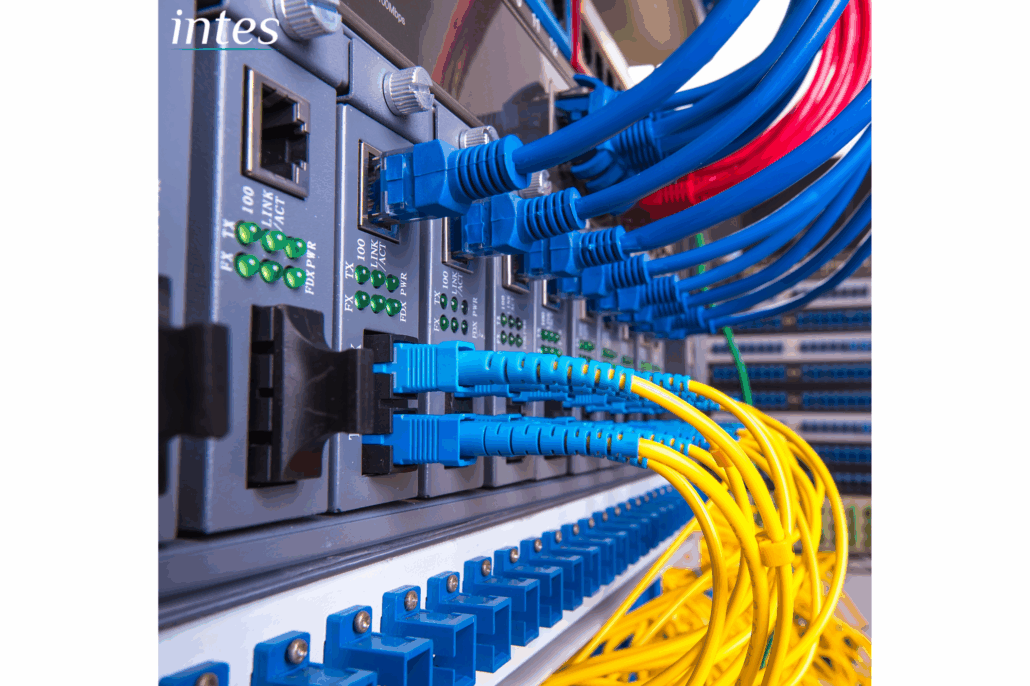
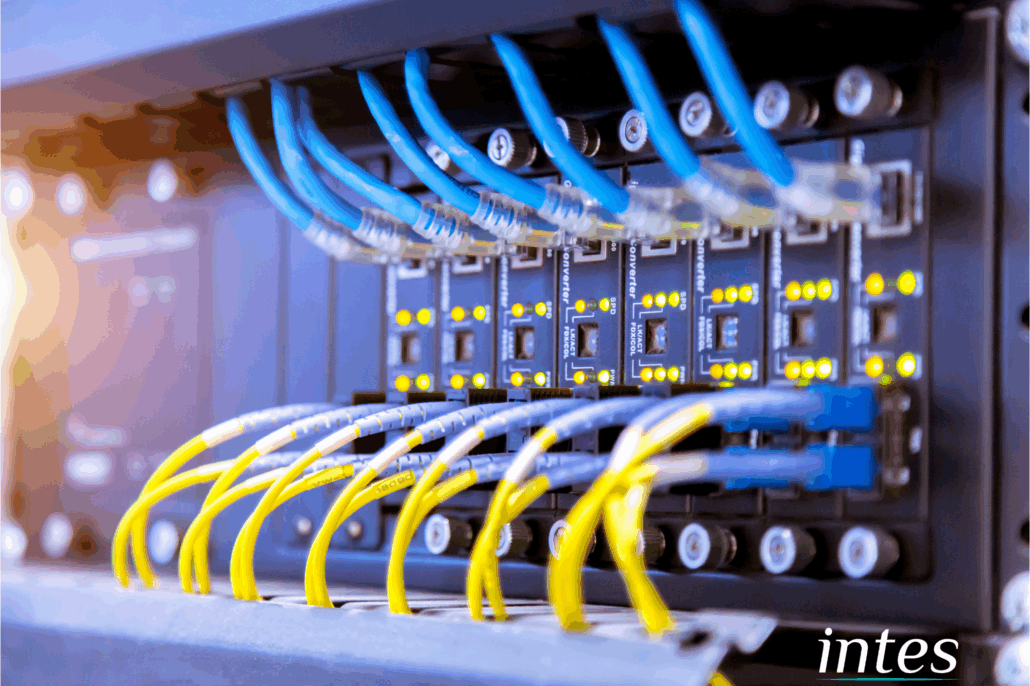
🧰 Physical Setup: Mounting & Powering Your Switch
-
Mounting the Switch
-
Install your switch in a cabinet or rack for neat cable management.
-
For small systems, desktop models are fine.
-
Powering On
-
Connecting Devices
-
Patch your uplink — connect a cable from your router or core switch to the new switch.
-
Connect your CCTV cameras, access control panels, and video entry units.
-
If your switch supports PoE, the cameras should power on automatically.
🧩 Managed Switch Configuration: VLANs, QoS & Port Security
Now that your switch is physically connected, it’s time to configure key features (for managed switches):
🧱 VLANs (Virtual LANs)
VLANs segment your network so that your CCTV traffic stays separate from other systems like lighting control or building management.
This helps improve performance and security by isolating network traffic.
⚡ QoS (Quality of Service)
QoS allows you to prioritize critical security data (e.g., video or access control traffic) over other less important traffic.
This ensures smooth streaming and reliable access control operations even when bandwidth is limited.
🔒 Port Security
Port security lets you define which devices are allowed to connect to specific ports.
This adds a layer of protection against unauthorized devices or tampering.
🔌 PoE Management
Different devices require different PoE power levels:
Make sure your switch supports the correct power budget for all connected devices.